Twitter Delicious Facebook Digg Stumbleupon Favorites More

Showing posts with label Geek Zone. Show all posts

Friday, May 27, 2011

Recover from Windows 7 Crash


Windows has gained infamy over the years with the number of times it crashes. While the number of crashes has been drastically reduced with Windows 7, it can still crash at some odd time. When a computer crashes, you usually end up losing precious data and if your work depends on the computer, its inoperable status makes things worse for you. Fortunately, Microsoft has a taken note of this and has bundled along an image creation tool to help you take some measures to salvage your system in such a situation.

Create the image

Ideally, you must create a system image of your Windows 7 when it is working perfectly, preferably after you install it and all the drivers and necessary software. You can easily create a Windows 7 system image in the following way.

Click on Start button and type "backup and restore" (without the quotes) and hit Enter. This launches the Back and Restore utility inside the Control Panel.


Using Backup and Restore, you can create a system repair disc, select a backup to restore files from, recover system settings or your computer and create a system image. We need to click on Create a system image link on the left hand side of the window.

After you click on Create a system image link, the application starts searching for valid locations to save the image. These valid locations include hard drives, optical drives and network locations. At the end of the search, you can choose which location you may wish to save the image to.


Once the locations have been discovered, you can choose one of them. Choosing a hard drive is the best option in our case, because the image of Windows 7 along with installed drivers and software will definitely exceed capacities of optical drives (except if you are planning to burn to something like a dual layer Blu-ray disc). If you plan to choose a network drive, you need a very fast and reliable Internet connection.


In the next and the final step, you can choose the drive which is to be saved as an image. You don't need to change this selection if you just want to back up your Windows 7, as it is pre-selected. Also, the application determines whether the image can fit on the destination, else it will not proceed, so there is nothing to worry here either. You can also see this information below the list of the selected drives as can be seen in the above screenshot. Click the Start Backup button to start the backup process. This process takes a long time, so you may want to keep it overnight to complete. Once the backup is complete, the actual backup size will be reported. As a general rule, the image file size tends to be more if your system is old. Therefore, as noted earlier, it is always advisable to create the image as soon as you install Windows 7 along with the drivers and the necessary software to keep the size of this image minimum. If possible, it is advisable to keep a copy of this image on a portable hard drive.

Even though the image creation is complete, there is one more step left in this backup process, and it is vital in the recovery process. You must create a System Repair disc. To do this, click Start button, type "system repair" and hit Enter.


Select the optical drive to save this image to, pop in a blank CD or DVD and click Create Disc. This is a fairly small image, so even a CD can be used. Make sure that you store this disc in a safe location.

Recovery

Now, in case your Windows 7 computer crashes, all you need to do is to simply use this system repair disc to boot the computer and when prompted, select Restore Your Computer Using a System Image That You Created Earlier. Browse to locate the image you created and then the process of recovery will begin. You will notice that this is the exact reverse of what happened while creating the image. This process also takes some time to complete, although it is a lot faster than creating the system image. At the end of the process, your system will be restored to the stage when the system image was created.

Windows 7 is a refined product and is less prone to crashes when compared to its earlier iterations, but the possibility still exists. We hope that you will use this guide to make sure that you are not in a fix if you ever encounter such a situation.

Aircel to Launch iPhone 4 In India Today

The iPhone 4 was launched way back in June in the U.S followed by other countries. But India has been one country among others that hadn't gotten the iPhone 4 love. Of course the iPhone 3G and 3GS are being sold even today. ButApple had remained tight-lipped about the launch of the iPhone 4 in India. Well, all that will be changing soon with Indian network operator Aircel announcing plans to launch the device in Indian markets starting from May 27th.

Director of Aircel, Mr. Sandip Das said, "We are very proud to bring iPhone 4 to Aircel customers in India. We always endeavour to bring to our consumers a world class experience and offer the best in innovation and service. With a robust roll out of Aircel' s 3G services in 13 circles across India, the launch of iPhone 4 will allow our consumers to truly savour the 3G experience. With our incredible new price plans, we aim to make iPhone more affordable than ever."

It is very frustrating that our country is getting the handset so late when other countries around the world are anticipating its successor's arrival. However, it is commendable that Aircel is bringing the device to the country, but we fear if it may be a little too late. And here's the big surprise, the 16 GB model of the iPhone 4 will start from a whopping Rs.34,500, while the 32 GB model will cost Rs.40,900. I wonder as to how a person can call this affordable. But I guess that's how Aircel likes to market the new device. The handset will be up for grabs from this Friday at select Aircel retail outlets.

The Postpaid plans are as follows:


And now for the Prepaid plans:

We're not really sure as to how people would respond to this new arrival in the Indian market. My personal belief is that these two models of the iPhone 4 are obscenely overpriced, what do you think?

Thursday, May 12, 2011

Its official – Microsoft buys Skype for 8.5$ Billion


Microsoft  and Skype today announced that they have entered into a definitive agreement under which Microsoft will acquire Skype, the leading Internet communications company, for $8.5 billion in cash from the investor group led by Silver Lake. The agreement has been approved by the boards of directors of both Microsoft and Skype.
The acquisition will increase the accessibility of real-time video and voice communications, bringing benefits to both consumers and enterprise users and generating significant new business and revenue opportunities. The combination will extend Skype’s world-class brand and the reach of its networked platform, while enhancing Microsoft’s existing portfolio of real-time communications products and services.
With 170 million connected users and over 207 billion minutes of voice and video conversations in 2010, Skype has been a pioneer in creating rich, meaningful connections among friends, families and business colleagues globally. Microsoft has a long-standing focus and investment in real-time communications across its various platforms, including Lync (which saw 30 percent revenue growth in Q3), Outlook, Messenger, Hotmail and Xbox LIVE.
Skype will support Microsoft devices like Xbox and Kinect, Windows Phone and a wide array of Windows devices, and Microsoft will connect Skype users with Lync, Outlook, Xbox Live and other communities. Microsoft will continue to invest in and support Skype clients on non-Microsoft platforms.
“Skype is a phenomenal service that is loved by millions of people around the world,” said Microsoft CEO Steve Ballmer. “Together we will create the future of real-time communications so people can easily stay connected to family, friends, clients and colleagues anywhere in the world.”
Skype will become a new business division within Microsoft, and Skype CEO Tony Bates will assume the title of president of the Microsoft Skype Division, reporting directly to Ballmer.
“Microsoft and Skype share the vision of bringing software innovation and products to our customers,” said Tony Bates. “Together, we will be able to accelerate Skype’s plans to extend our global community and introduce new ways for everyone to communicate and collaborate,” Bates said.
“Tony Bates has a great track record as a leader and will strengthen the Microsoft management team. I’m looking forward to Skype’s talented global workforce bringing its insights, ideas and experience to Microsoft,” Ballmer said.
Speaking on behalf of the investor group that sold Skype to Microsoft, Egon Durban, managing director of Silver Lake, said: “We are thrilled with Skype’s transformation during the period of our ownership and grateful for the extraordinary commitment of its management team and employees. We are excited about Skype’s long-term future with Microsoft, as it is poised to become one of the world’s most dynamic and comprehensive communications platforms.”
Founded in 2003, Skype was acquired by eBay in September 2005, and then acquired by an investment group led by Silver Lake in November 2009. Skype has made impressive progress over the past 18 months under Silver Lake’s leadership, increasing monthly calling minutes by 150 percent, developing new revenue streams and strategic partnerships, acquiring the intellectual property powering its peer-to-peer network, and recruiting an outstanding senior management team.
Other members of the selling investor group led by Silver Lake include eBay International AG, CPP Investment Board, Joltid Limited in partnership with Europlay Capital Advisors; and Andreessen Horowitz.
The acquisition is subject to regulatory approvals and other customary closing conditions. The parties hope to obtain all required regulatory clearances during the course of this calendar year.

Wednesday, May 11, 2011

Guide to Purchasing Your Digital Camera


Digital camera is a must have accessory for each and every person out there. Not because it’s a camera, but because it’s the only device that helps you keep and cherish the captured beautiful moments forever. There are a zillion types of digital cameras out there in the market to choose from.


I often see people getting confused about which one to buy and what to look for in a camera while purchasing. So I decided to write a guide on what should one be expecting and taking note when purchasing his/her first digital camera.

Camera Sensor

Sensor is one of main organ that keeps a camera functioning and to put it metaphorically, its like a heart to our bodies. That’s correct; a digital camera is a camera because it has got a light sensitive sensor. Remove that sensor, and you can no longer call that a “camera”.


In older times, when technology wasn’t this advanced and the idea of digital camera haven’t been introduced, light sensitive films were used in cameras. These films were exposed to light and the image was formed. However, the drawback of that technique was that it was permanent and once a piece of film is exposed to light, you can no longer re-use it for taking other sets of photographs. However, in this era of digital cameras, the rules have changed. Now those permanent, photo sensitive film has been completely replaced by sensors. Sensors also act exactly like the photo sensitive films (and they are light sensitive too) but with the advantage of giving us re-usable form of light sensitive films.

So that leaves us with a conclusion that while purchasing your first digital camera, do a research about the sensor being used by different camera companies in manufacturing the type of camera you’re going to purchase.

A detailed explanation of camera sensors would be way beyond this article, but if you want to have a detailed look about camera sensors, their types and qualities, following are the further reading resources:

http://en.wikipedia.org/wiki/Image_sensor
http://www.dpreview.com/learn/?/Glossary/Camera_System/sensor_sizes_01.htm


Optical Zoom Is King, Digital Is Crap

Very often I notice people getting confused between optical and digital zooms. Let me clarify what they are exactly and what makes them different. Optical zoom is the *real* zoom that digital cameras are having. They are a property of camera lens rather than being the property of camera body. With optical zoom, the motors inside the camera lens actually move in and out to provide you the required magnification.

Digital zoom on the other hand is a function that are not necessary to any camera user. Digital zoom is a property of camera rather than being the property of a camera lens. What digital zoom does is, it simply expands the pixels of the photograph you are viewing through your camera LCD panel. It does not actually do any zoom. But it just makes you feel that you are closer to the subject. But you get a pixelated and low quality photograph if you use digital zoom while taking them.

Having said, while purchasing your first digital camera, always check how much Optical Zoom it is offering. Forget about the digital zoom. That doesn’t even matter. As I have mentioned, Optical Zoom actually requires addition of precise motors in the lens, the camera giving higher optical zoom is bound to be more expensive. Take your pick according to your needs here.

The Megapixel Myth


“I’ve got more megapixels than you, I’m more powerful” right? Wrong. The megapixel myth (unfortunately) has been prevailing for ages in the digital camera market. And indeed, the camera manufacturers have exploited this myth among people in selling and marketing their cameras. People fall in the high megapixel means better camera myth very easily due to lack of awareness on what exactly the megapixel count do to the quality of photographs you take does. Here’s the painful truth:

First of all, higher megapixels does not mean that your camera is better. If I have an EOS SLR camera of 8 megapixels, it is capable of taking far superior photographs than your 12 megapixels point and shoot camera. Why? Because it all depends on the sensor that’s inside the camera and not the megapixel count.
Megapixel count matters only when you are planning to take prints of your photographs. If you are a casual photographer who uses a camera just for taking the photographs and viewing/uploading them on a computer, a 4 megapixel is more than enough for you. Megapixels in no way define the quality of photographs. The megapixel count can only determine how big you can print your pictures.
If you want to dive deep into megapixel details, here are some great further reading resources:
http://shutterskills.com/how-important-are-megapixels-in-your-digital-camera.html

The Camera Build Quality


The next and important thing to have in your checklist while selecting your first digital camera is the camera builds quality. Since there are zillions of digital camera manufacturers out there with each one introducing their cameras, one should really look upon the camera build quality before making the final decision. After all, you don’t want your camera to break into pieces if it accidentally falls from your pocket. There are no set rules in this regard but you should definitely compare the camera build quality between different available models before purchasing.

Camera Accessories

While purchasing your camera, do not forget about the camera accessories that you’ll definitely need to exploit your camera. Camera accessories include memory card, camera cleaning kit, camera carry bag, tri-pods etc. Many times, these accessories come with the camera box as a promotional offer or something. So make sure you keep yourself updated about the possibilities of any camera accessories you can get with your camera purchase.

Conclusion

So, in this article we do not only discuss the important things that you should keep in your mind while hunting for you first digital camera but we also busted some very common digital camera myths and misunderstandings. We would like to see what you think about our efforts and on the same front, if you have anything to add which we might have forgotten to list. Drop in your valuable comments below and let me know.

Sunday, May 8, 2011

Internet More Popular Than TV?


new study from IDC indicates that on average people spend 32.7 hours online a week and only 16.4 hours watching television. Newspapers and magazines get only 3.9 hours of our attention. IDC surveyed 992 Americans aged 15 years and older.
But does this actually mean that the Internet is twice as popular as television? I wouldn’t say that just yet. The total weekly media consumption comes to 70.6 hours in the survey. The press release also doesn’t indicate whether there was simultaneous media consumption.
Barring simultaneous consumption, with seven hours of sleep a night and eight hours of work a day, that leaves about an hour a day for everything other than media consumption. I’d like to think that even I don’t consume that much media in my spare time. The study doesn’t specify whether these hours are only “leisure” time—and I’m gonna bet that most people can’t get away with channel surfing during work.
The study also looked at online activities:
The data also show that consumers tend to use the media they grew up with. The older the respondents, the more they consume TV, newspapers, and magazines; the younger they are, the more the Internet displaces usage of traditional media. Using search engines (84% of respondents), mapping and navigation services (83%), personal research (77%), and using email (76%) are the most frequent online activities.
The 16% that didn’t use search engines would have said yes had the question said “Google” or “Yahoo.” (I’m not entirely joking—I was explaining what I do for my grandfather once. I asked him if he used search engines. He said he didn’t. I asked him if he used Google. He said he did.)
Odd, though, since I know that the stats I gave to clients two years ago said that 88% of Internet users used search engines (NFO Research, though the discrepancy there is probably within the margin of error) and even more used email (90% to 95%). I find it hard to imagine that nearly a quarter of American Internet users aren’t using email at all.
Is the Internet more popular than television? Apparently. But it’s also more portable and more universally accessible (especially from work). Is this even a fair fight?

A Functional Jetpack - Without Jets!


Up until recently there were limited ways that a person could fly. They could get in an airplane.
But now there is a new path to the sky: The Jetlev Flyer. Attaching to your back like a jet pack, but far less likely to explode, the Jetlev Flyer rockets you into the air not with flame, but water. Think of it as strapping twin fire hoses to your back, then riding the recoil. Obviously, this technique requires a tremendous amount of liquid, so a giant hose tethers you to a floating unit on the water's surface that pumps up the H2O. This system allows for plenty of fuel, which means you can fly for roughly two hours at cruising speed, or for a little over an hour with the throttle wide open.

Even with the tether, you get a legit flight experience. The Jetlev allows you to soar up to 30 feet in the air, while the fly-by-wire steering system lets you travel anywhere you want to go—assuming you only want to go places that are above water. As per usual, cool new technology doesn't come cheap; each one costs about a hundred grand...but we gotta think you could recoup that investment pretty quick with a nice little rental biz in Hawaii.

So go strap one to your back and pretend you’re the Rocketeer. 

Google, Facebook Circle Around Twitter


Is Twitter worth the $10B sources clam has been offered?

Social networking and other growing tech firms are in the crosshairs for investors and for acquisitions from later entities. One of the firms that huge companies like Google and Facebook are eyeing greedily is Twitter. Both Google and Facebook have reportedly approached Twitter for a possible purchase.

So far, The Wall Street Journal sources say that Twitter has turned down any purchase offers and the numbers being tossed around for the 140-character messaging site are in the area of $8 billion to $10 billion. None of the parties allegedly involved in the talks will comment publically about a potential takeover or talks that may have been had.

The huge sum of money that is being tossed around for Twitter has some wondering if the company is worth it. According to the sources at the WSJ, Twitter generated revenue of about $45 million in 2010 and actually lost money after spending on new workers and data center improvements. Estimated revenue is thought to be in the $100 million range for 2011.

Ethan Kurzweil from Bessemer Venture Partners said, "Are these prices justifiable based on financial multiples? No." However, Kurzweil thinks the real money that Twitter is worth comes from the value of the data the service has collected on its users. Twitter started placing ads on its content about a year ago and was valued at about $3.7 billion in December 2010 when it received a $200 million investment from venture capital.

Turning down big money offers for acquisition is becoming more common with startups in the tech world as they seek to stay independent and build up rather than sell early for quick profit. The WSJ reports that other tech firms are looking to go public with Pandora Media planning a $100 million IPO this year and LinkedIn Corp filing to go public with valuations in the area of $2 billion. The WSJ reports that venture capital firm Andreessen Horowitz announced Wednesday that it had purchased $80 million in Twitter shares through exchanges for private-company stock. The firm will not say what percentage of Twitter stock that it owns.


PC Game Portrays Osama bin Laden's Death


New first-person shooter allows users to kill Osama bin Laden...again

Only days after the death of Osama bin Laden, Kuma Games has announced that it is giving PC gamers the chance to pull the trigger that killed the world's most wanted terrorist again and again. 
Osama bin Laden was the founder of the al-Qaeda organization, which launched several mass-casualty attacks against military and civilian targets including the September 11 attacks on the United States in 2001. On May 1, 2011 (May 2 according to Pakistan Standard Time), U.S. President Barack Obama announced that bin Laden had been killed by a team of 20-25 U.S. Navy SEALS from the Naval Special Warfare Development Group. 
Now, computer game developer Kuma Games is releasing a PC title called "Kuma\War Episode #107: The Death of Osama bin Laden," which allows users to experience the pursuit and the killing of bin Laden firsthand through a virtual shooting game. 
As you might expect, the firsthand shooter in the game is a U.S. Navy SEAL who travels to Abbottabad, Pakistan to break into bin Laden's mansion. Users must first kill the guards before coming face-to-face with bin Laden himself in the historical battle that took place just days ago.
This isn't Kuma's first reality computer game. In 2005, Kuma released a game that allows users to kill Saddam Hussein. In addition, previous "Kuma War" titles have featured battles in Pakistan and Afghanistan.  
Kuma may get some adverse reactions to the bin Laden title, though. Other games, such as "Medal of Honor," initially received criticism due to its themes associated with Taliban fighters. Also, "Call of Duty: Black Ops" was criticized because of its option to assassinate Fidel Castro. 
There are also differing views of the legality of bin Laden's death in recent blogs and news reports, as well as people with issues regarding the ethical/spiritual side of killing the terrorist leader. But overall, many have welcomed the death of bin Laden. 
In response to those who have criticized video games that depict real events, Kuma has said that the games are not made to mock these world events or demean what the military has worked hard to accomplish everyday. 
"At Kuma, we are sensitive and respectful of American and coalition soldiers and the sacrifices they are making every day," said Keith Halper, Kuma CEO. "We hope that by telling their stories with such a powerful medium that we enable the American public to gain a better appreciation of the conflicts and the dangers they face." 
"Kuma\War Episode #107: The Death of Osama bin Laden" will be released this Saturday.
Personally, I don't see the harm in pulling the virtual trigger at the virtual bin Laden. Some reports question whether the U.S. military did the right thing by killing bin Laden when he was allegedly unarmed, but I'm unquestionably for the U.S. victory that the military has worked to achieve for years now. Would I go out of my way to play Kuma's bin Laden killing spree game? Possibly, but only out of curiosity. I'm not against its release, but I don't need to play it in order to understand or feel apart of what happened. 
What do you think? Is the game a way of capitalizing on the event, or are critics too sensitive? 

Stunning Jaguar C-X75 EV Supercar Headed for Production


Car packs FOUR electric motors for extra power and hybrid fun


After an enthusiastic response to the hot C-X75 concept, British luxury carmaker Jaguar, Ltd. -- a wholly owned subsidiary of India's TATA Group -- is planning to green light the hot electric vehicle (EV) for productionaccording to Top Gear.

The concept riffed on the much beloved XJ220 supercar from the nineties, which packed a twin-turbocharged V6 engine capable of producing 500 braking horsepower (BHP), a top speed of 200+ mph, and a 0 to 60 mph time of 4 seconds.

The C-X75, however, features an advanced modern electric drivetrain.  Four electric motors at the wheels produced a combined 778 bhp and a whopping 1,180 lb-ft of torque.  That's good enough to propel the 1,350 kg body from 0 to 60 mph in 3.4 seconds and reach a top speed of 200 mph.

If the driver’s lead foot is kept in check, the concept vehicle has a respectable 68-mile range on a charge.  That's when range-extending gasoline turbine generator twins (80,000 rpm) kick in, recharging the battery pack.  With the gas generators, it can get another 492 miles on a full tank.

A key shift is that the production model will drop these turbine generators in favor of a "highly boosted" four-cylinder turbocharged gasoline engine.  Jaguar hasn't commented on how this might affect the range or power when operating under the gas generator.

The production model is expected to dash from 0 to 100 mph in under six seconds and cut the 0 to 60 mph acceleration to under seconds

This stellar performance is largely owing to the light weight, which is partly the product of a carbon-fiber chassis design.  Emissions for the vehicle are expected to be under 99g/km of CO2.  

Approximately 250 C-X75s are expected to land in the UK and be shipped abroad within the next couple years.

In the luxury sector Jaguar will compete with Tesla Motor, Inc. (TSLA), makers of the Tesla Roadster, and Porsche SE (PAH3), makers of the Porsche 918 Spyder.  

Oh and the car will cost between  £700,000 ($1.14M USD) and £900,000 ($1.48M USD).  What, you thought all that power came for free?

Queen's University Researcher Creates "Paper" Smartphone


"PaperPhone" is as thin and flexible as a sheet of paper, yet possesses the same capabilities as a regular smartphone

It seems as though IT companies and wireless carriers are leaning toward the principle "the smaller, the better" these days as AT&T rolls out a diminutive HP Veer 4G and tablets like Samsung's Galaxy tabs and Apple's iPad 2 are in a battle to be the thinnest. But researchers from Queen's University Human Media Lab may have them beat with the development of the first interactive paper computer that is being described as a "flexible iPhone."

Roel Vertegaal, director of Queen's University Human Media Lab, has developed the world's first “paper” smartphone prototype called PaperPhone. It looks like a thin, plastic sheet of paper, yet operates the way any smartphone would. It is a lightweight and flexible smartphone with a 9.5 cm diagonal thin-film E Ink display.

Despite its thin, lightweight design, PaperPhone is capable of making phone calls, playing music and storing documents, books and photos. Larger versions of this technology could even be used in offices, eliminating the need for certain supplies like printers, paper and standard ink cartridges.

However, because of the E Ink display, don’t expect vivid graphics, fast display refreshing, or the ability to play movies/games with the PaperPhone.

"The paperless office is here," said Vertegaal. "Everything can be stored digitally and you can place these computers on top of each other just like a stack of paper, or throw them around the desk."

In addition to its sleek design and powerful abilities, the PaperPhone is remarkable in that it does not require power when a user is not interacting with it.

"This is the future," said Vertegaal. "Everything is going to look and feel like this within five years. This computer looks, feels and operates like a small sheet of interactive paper. You interact with it by bending it into a cell phone, flipping the corner to turn pages or writing on it with a pen."

Vertegaal will present his PaperPhone on May 10 at the Association of Computing Machinery's Computer Human Interaction conference in Vancouver.

Thursday, April 7, 2011

Internet Explorer 9 : Review


Today I tested Microsoft's latest browser Internet Explorer 9.
Internet explorer 8 was far better than IE9.
I don't like to waste your time going to all the details.
In simple words : Feels light weight when it starts, consumes less resources than competing browsers.
When you start it, the window shows up but u can't do anything...literally...even type the address of a website until all the add-ons have been loaded. ( Without add-ons this browser is lightning fast at start-up. Even faster than chrome )


If a website is heavy(large size or takes more time to load), not only your browser freezes but also your system !
Just imagine a website having two or three pop-ups! It takes nearly 2 minutes to load with 2mbps broadband speed.
My honest opinion is not to go for it and use either Chrome or Firefox 4. They are much better than this headache browser.
I am sorry Microsoft guys. I didn't mean to hurt you but that is the reason your "browser update" is not well received by the netizens.
Hope Microsoft does not screw up the xp release as well.

Sunday, March 27, 2011

How to Get Virtual Desktops on Windows XP

Virtual desktops are an excellent tool for anybody who likes to multitask. They allow the user to run multiple desktops simultaneously from any laptop or desktop computer, which you can switch between at the touch of a button. Each of these desktops can have its own background and have its own applications loaded.
I like to use it as an easy way to separate my business applications from my leisure ones. It doesn’t come standard in XP, but there is some perfectly safe and easy to use software out there that will give you up to 4 desktops to work with. 
 

First, go to the Microsoft PowerToys download page, and select DeskMan.exe from the right side of the screen (the file it actually downloads will be called DeskmanPowertoySetup.exe).
clip_image002 
Then double click the file and select “Complete” install. It usually doesn’t take very long.
clip_image004
Now it’s installed, so let’s test it. Go to the bottom of the screen and right click on the taskbar, then select toolbars. You’ll see there’s now an option for Desktop Manager. Click it.
clip_image006
This brings up the desktop manager toolbar, which integrates with your taskbar and looks like this:
clip_image008
You guessed it, each one of those four buttons corresponds to a different desktop. The green button on the left pulls up a view that previews all four and allows you to select between them. Right clicking on any of the buttons brings up some options to set different backgrounds for each desktop, or to assign shortcut keys for easy access.
clip_image010
And just like that…
clip_image012
You’ve got four desktops! Simply click on any of the desktops in the preview screen above to bring that one to the front. (Note there is also a way to get virtual desktops in Windows Vista, but that’s another article.)

Access Google Services From the Command Line

Want to show your geeky side and edit your Google Docs or write a Blogger post from command prompt?  Here’s how you can access a variety of Google services from command line with the GoogleCL.
Getting Started
GoogleCL is a Python command line application that lets you access various Google services from command line on Windows, Mac OS X, or Linux.  Here we’ll be using the Windows version on Windows 7, but it would work the exact same on other platforms.
Head over to the download link below, and select the correct version for your OS.  If you want to run it on Windows, select the zip file.  Ubuntu users can download and install the .deb file.
sshot-2010-07-27-[08-22-30]
After downloading the zip file for Windows, extract it as normal and then run the google.exe program in the folder.
sshot-2010-07-27-[08-25-11]
The first time you run Google CL, it will create a preferences folder at:
%USERPROFILE%\.googlecl


sshot-2010-07-27-[20-53-58]
On one of our tests, we received an error saying that MSVCR71.dll was missing from our computer, so GoogleCL couldn’t run.  This is a C++ runtime library in Windows, and most programs that need it include it with their program files.  GoogleCL does not include this DLL in the zip file, so we’ll need to find a copy for it.
image
You’ll likely have many copies of this file throughout your computer, but GoogleCL cannot find them.  So, do a computer-wide search for msvcr71.dll, and copy one of these files it finds.
image
Now paste that dll file in the GoogleCL folder, and run google.exe as before.  Everything should work perfectly this time.
image
Using GoogleCL
GoogleCL’s syntax is very easy to use and understand.  To get started, you might want to checkout the readme.txt file included.  Or, just type help at the prompt to get some quick instructions.
image
You can use GoogleCL to access services on Picasa, Blogger, YouTube, Docs, Contacts, and Calendar via the command line interface, and we’d love to see future versions will include support for more items including Gmail and Search.  For now, though, these services are still useful.  Enter help followed by a service name to see more info about it and some usage examples.  Here we see the help for Calendar.
image
Activating a Service
When you first use a service, you’ll have to activate your computer with it online.  For instance, if we wanted to see all the appointments in our Calendar, we’d enter Calendar list.  You’ll be asked to specify a user; enter your Gmail email address.  Then, you’ll be prompted to approve the access in your browser, and the approval page will automatically open in your default browser.
sshot-2010-07-27-[15-45-24]
Click Grant access in the webpage that opens, and then press Enter in the GoogleCL window.
image
You’ll have to do this for each of the Google services you use.  Even closely related services like Contacts and Calendar have to be activated individually.  One interesting aspect of this is that you could have different Google account associated with different services.  Once they’re activated, though, it’ll be easy to use these services on this computer.
Using GoogleCL
GoogleCL has tons of functions you can use to interact with Google’s services.  We’ll look at a few of the functions we found interesting.
Docs
First, we tried uploading a document to Docs.  To do this, enter:
docs upload path_to_your_document
This may take a minute depending on the size of your document, but once it’s done, you’ll see a success message and a link to your document.
image
You’re supposed to be able to edit documents by entering:
docs edit –title “your_document” –editor your_editor
However, this didn’t work in our tests, and we received an error message.  This should work in the future, and could have been caused by a problem on our end, but it would not work in any of our tests.
image
YouTube
GoogleCL worked great for uploading videos to YouTube.  Once you’ve authorized your account, enter:
youtube post “your_file_path
Enter a category name when requested, and GoogleCL will start uploading your video to YouTube.  As usual, this will take a few minutes depending on the size of your video, but it’s still quicker than going to the YouTube page to post a video.
image
Note that you may see an error if you enter a category that is not available on YouTube.  If so, try again, this time entering a correct category.
image
For your reference, here’s some of the categories you can use from YouTube.com…so make sure you use one of them.
sshot-2010-07-27-[16-29-34]
Blogger
GoogleCL makes Blogger into a geekier blogging service.  You can review, tag and even create new posts on Blogger, all directly from command line.  You can write the body of your post in a text file, and you can even use HTML markup to make the post look like you want.  To do this, enter the following in GoogleCL:
blogger post –title “your_titlepath_to_post_file
sshot-2010-07-27-[20-32-37]
Moments later, we had a new blog post with the content from our text file.  We could have posted a long, well formatted HTML post, but hey, what’s better than the classic geek greeting for a geeky blog post?
image
Conclusion
Whether you’d like to quickly edit Gmail contact info, upload a YouTube video without using the flaky Flash uploader, or make a script that automatically makes a post on Blogger when you bang your head on the keyboard, GoogleCL gives you the tools you need to do more with Google than you though possible.  Who said Google doesn’t have a cloud OS?  When you can interact with a webapp via command prompt, suddenly it feels like Google is just another part of your computer.  We’ve only scratched the surface of what you can do with GoogleCL; check out the examples link below for more ideas.  Let us know what geeky projects you do with GoogleCL!
Link

What’s the Difference Between 32-bit and 64-bit Windows 7 ?

32bitheader
Whether shopping for a new computer or upgrading an old one, you’ve likely come across the the “64-bit” designation and wondered what it meant. Read on as we explain what Windows 7 64-bit is and why you’d want a piece of that 64-bit pie.
Windows 7 has done an enormous amount to increase the popularity of 64-bit computing among home users but many people are unclear on what exactly it means (and may not even realize they’re already running it). Today we’re taking a look at the history of 32-bit and 64-bit computing, whether or not your computer can handle it, and the benefits and shortcomings of using a 64-bit Windows environment.


A Very Brief History of 64-bit Computing

2011-03-22_130532
Before we start dazzling you with interesting history, let’s get the basics down. What does 64-bit even mean? In the context of discussions about 32-bit and 64-bit personal computers the XX-bit format refers to the width of the CPU’s register.
The register is a small amount of storage used by the CPU where the CPU keeps the data it needs to access the quickest in order for optimum computer performance. The bit designation refers to the width of the register, thus a 64-bit register can hold more data than a 32-bit register which in turn holds more than 16-bit and 8-bit registers. The more ample the space in the CPU’s register system the more it can handle, especially in terms of utilizing system memory. A CPU with a 32-bit register, for example, has a ceiling of 232 addresses within the register and is thus limited to accessing 4GB of RAM. This may have seemed like an enormous volume of RAM when they were hashing out register sizes 40 years ago but it’s a rather inconvenient limit for modern computers.
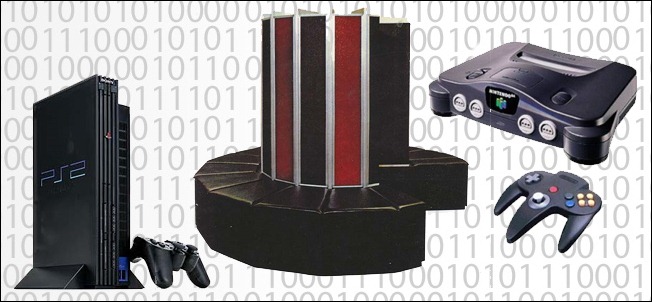
Although it may seem like 64-bit computing is the new kid on the techno-wizardry block, it has actually been around for decades. The first computer to utilize a 64-bit architecture was the Cray UNICOS, which sets a precedent for 64-bit super computers (the Cray 1 is seen in the center of the photo above). 64-bit computing would remain the sole province of super computers and large servers for the next 15 or so years. During that time consumers were exposed to 64-bit systems, but most were completely unaware of it. The Nintendo 64 and the Playstation 2, both seen in the photo above, had 64-bit processors a full 5 years before consumer level 64-bit CPUs and accompanying operating systems even make a faint appearance on the public radar.
Consumer confusion over what 64-bit means to them and poor driver support severely hampered the push towards 64-bit personal computers throughout most of the 2000s. In 2001 Microsoft released Windows XP 64-bit edition which, save for those wanting to deal with extremely limited driver support and many headaches, was not widely adopted. The following year OS X Panther and a handful of Linux distributions began supporting 64-bit CPUs in varying capacities. Mac OS X didn’t fully support 64-bit for another five years with the release of OS X Leopard. Windows supported 64-bit in Windows Vista but, again, it wasn’t widely adopted. All around it’s a bumpy road for 64-bit adoption among home users. The release of Windows 7, however, turned things in favor of 64-bit computing and many off-the-shelf computers now ship with Windows 7 64-bit.

Can Your Computer Handle 64-bits?

2011-03-22_124533
Whether you’re a Windows XP holdout contemplating an upgrade to Windows 7 or you’re curious if your computer running Windows 7 32-bit can handle an upgrade to Windows 7 64-bit, there are a few handy ways to check.
You can check your version of Windows installation to see if you’re already running a 64 bit OS. Under Windows Vista and Windows 7 all you need to do is right click on Computer in the Start Menu and click Properties in the right-click context menu. This will take you to the System Properties menu (as seen in the screenshot above) and show you, under System type, whether you have a 32-bit or 64-bit operating system.
If you’re running Windows XP you can check in a similar fashion but the chances of you being a Windows XP 64-bit user are fairly slim. The most important step you can take with an XP machine (or a Windows Vista/7 machine running the 32-bit version) is to test your processor and see if it’s even possible for you to upgrade to a 64-bit version of Windows.
2011-03-22_130332
To perform the test you’ll want to grab a copy of Steve Gibson’s free and portable application SecurAble. Seen in the screenshot above, SecurAble tests for three processor variables. First it tests your processor to see if it is 64-bit. Second, it checks to see if the chip supports D.E.P. (a security technology designed to protect machines from “unchecked buffer” attacks). Finally, it indicates if your machine can handle Windows XP virtualization under Windows 7 (hardware virtualization has other applications, but the much talked about XP virtualization under Windows 7 is by far the best known use). If you’re curious you can click on any of the results in SecurAble to get a more detailed run down of the results and what they mean. In the case of our test machine, seen above, the CPU is good to go for 64-bit computing, D.E.P. protection, and hardware virtualization.

The Benefits and Shortcomings of 64-bit Computing

2011-03-22_130232
You’ve read a little on the history of 64-bit computing and your system check indicates you can run Windows 7 64-bit. Now what? Let’s run through the pros and cons of switching over to a 64-bit operating system.
What do you have to look forward to if you make the leap? Here are some of the enormous benefits to making the jump to a 64-bit system:
  • You can rock radically more RAM. How much more? 32-bit versions of Windows (and other OSes for that matter) are limited to 4096MB  (or 4GB) of RAM. 64-bit versions are theoretically capable of supporting a little over 17 billion GBs of RAM thanks to that spacious register system we talked about earlier. Realistically, Windows 7 64-bit Home editions are limited (because of licensing issues, not physical limitations) to 16GB of RAM and the Professional and Ultimate editions can rock up to 192GB of RAM.
  • You’ll see increased efficiency. Not only can you install more RAM in your system (easily as much as your motherboard can support) you’ll also see more efficient use of that RAM. Because of the nature of the 64-bit address system in the register and how Windows 64-bit allocates memory you’ll see less of your system memory chewed up by secondary systems (like your video card). Although you may only double the physical amount of RAM in your machine it will feel like way more than that because of the new efficiency of your system.
  • Your computer will be able to allocated more virtual memory per process. Under 32-bit architecture Windows is limited to assigning 2GB of memory to an application. Modern games, video and photo editing applications, and hungry applications like virtual machines, crave large chunks of memory. Under 64-bit systems they can have, brace yourself for another big theoretical number, up to 8TB of virtual memory. That’s more than enough for even the craziest of Photoshop editing and Crysis sessions. On top of the more efficient use and allocation of memory, applications optimized for 64-bit operating systems, such as Photoshop and Virtualbox, are super fast and take full advantage of the spaciousness of the processor and memory afforded to them.
  • You’ll enjoy advanced security features. Windows 64-bit with a modern 64-bit processor enjoys additional protections not available to 32-bit users. These protections include the aforementioned hardware D.E.P., as well as Kernel Patch Protection that protects you against kernel exploits, and device drivers must be digitally signed which cuts down on the incident of driver-related infections.
That all sounds wonderful, no? What about the shortcomings? Fortunately the list of shortcomings that come with adopting a 64-bit operating system is increasingly smaller as time goes on. Still there are a few considerations:
  • You can’t find 64-bit drivers for older but critical devices on your system. This one is a serious deal killer. Fortunately vendors are increasingly supporting 64-bit operating systems (you should have little problems with hardware manufactured in the last year or two). Unfortunately you’ll be hard pressed to get drivers for older devices. Have an expensive sheet-fed scanner from 2003? Love it? Too bad. You’re probably not going to find any 64-bit drivers for it. Hardware companies would rather spend their energy supporting new products (and encouraging you to buy them) than supporting older hardware. For small things that are easily replaced or need to be upgrades anyway, this isn’t a big deal. For mission critical and expensive hardware it is. You’ll have to decide for yourself if the upgrade cost and tradeoffs are worth it.
  • Your motherboard doesn’t support more than 4GB of RAM. Although it’s rare it’s not unheard of to have a motherboard that will support an early 64-bit processor but not support more than 4GB of RAM. In this case you’ll still get some of the benefits of a 64-bit processor but you won’t get the benefit that most people crave: access to more memory. If you’re not buying bleeding edge parts, however, hardware has gotten so cheap lately that it might be time to retire the old motherboard and upgrade at the same time you’re upgrading your OS.
  • You have legacy software or other software issues to deal with. Some software doesn’t make the transition to 64-bit smoothly. Unlike previous versions of Windows, Windows 7 64-bit has no support at all for 16-bit applications. If by some chance you’re still using a really old legacy application for something you’ll need to either virtualize it or forgo an upgrade. Also, just because an application is 64-bit doesn’t mean the plugins and extensions for it are. Photoshop and Firefox are common applications where people run into this problem. The core application is available in an updated 64-bit form but important plugins are not.
Before we leave the cons side of things, I’m going to weigh in on a personal level. I have been running Windows 7 64-bit for nearly 2 years now and I have run into only a single issue related to the operating system being 64-bit. Everything has functioned smoothly, I’ve enjoyed rocking 8GB of ram, I’ve run half a dozen virtual machines at one time without a hitch, and overall I’ve been extremely pleased. The only issue I ran into was trying to get my early 2000-era Canon scanner to function. Canon simply failed to produce a driver set for it and all the hacks and tweaks failed to coerce it to work. Ultimately I just bought a new and equally as cheap scanner for $50 and called it a day. All things considered it was a very nominal trade off and given how little I actually use a scanner it’s possible I might still be unaware it wasn’t working. 64-bit computing has become affordable, easy to use, and virtually headache free.

 
Design by Free WordPress Themes | Bloggerized by Lasantha - Premium Blogger Themes | Blogger Templates